How to Open an Incognito WindowUpdated 4 months ago
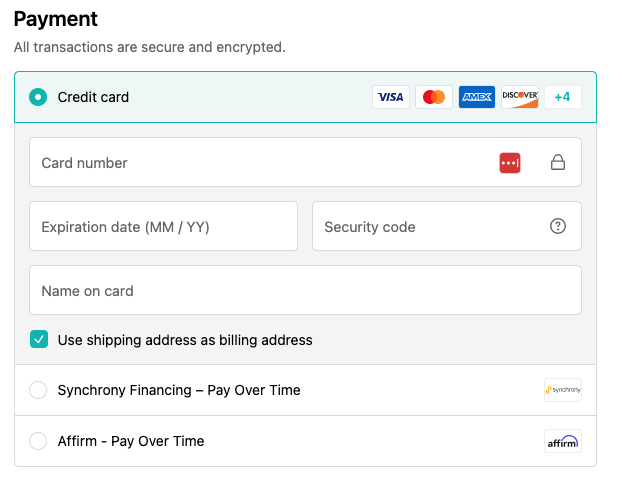
If you are attempting to checkout and the cart does not show you all the payment options you expect, or all the options shown at the bottom of this article, your browser may have cached data from a previous purchase. In some cases, Shopify will not show all payment options and it may be necessary to attempt to checkout through a private or incognito window. The instructions to open one of those tabs for several popular browsers are below:
To open an Incognito Window in Google Chrome:
- On your computer, open Chrome.
- At the top right, click More
New Incognito Window.
- A new window appears. In the top corner, check for the Incognito icon
.

 New Incognito Window.
 .
.You can also use a keyboard shortcut to open an Incognito window:
- Windows, Linux, or Chrome OS: Press Ctrl + Shift + n.
- Mac: Press ⌘ + Shift + n.
Open an Incognito/Private Window in Safari (for Mac)
- Go to the Safari app
 on your Mac.
 - Choose File > New Private Window, or switch to a private browsing window that’s already open.
Private mode on Edge (PC)
- Open Microsoft Edge.
- Select the three dots icon in the upper-right corner.
- Select New InPrivate Window from the drop-down menu. A new window opens, showing InPrivate at the top right.
Payment options that should be available:
- Credit Card
- Synchrony Financing
- Affirm Financing